 The Planning Calendar is in development and expected to be released in early 2027. It cannot be configured yet.
The Planning Calendar lets you plan documents day by day. It shows the coming days side by side, with a card for each document.
Documents show up as unplanned on the day they are expected to be ready. Someone then plans them in, either for that day or for another one.
For example, a department can use the calendar to plan its articles for the week. Journalists say when they expect their articles to be ready. The head of the department sees these articles as unplanned cards and plans each one for the day it should run.
Usage
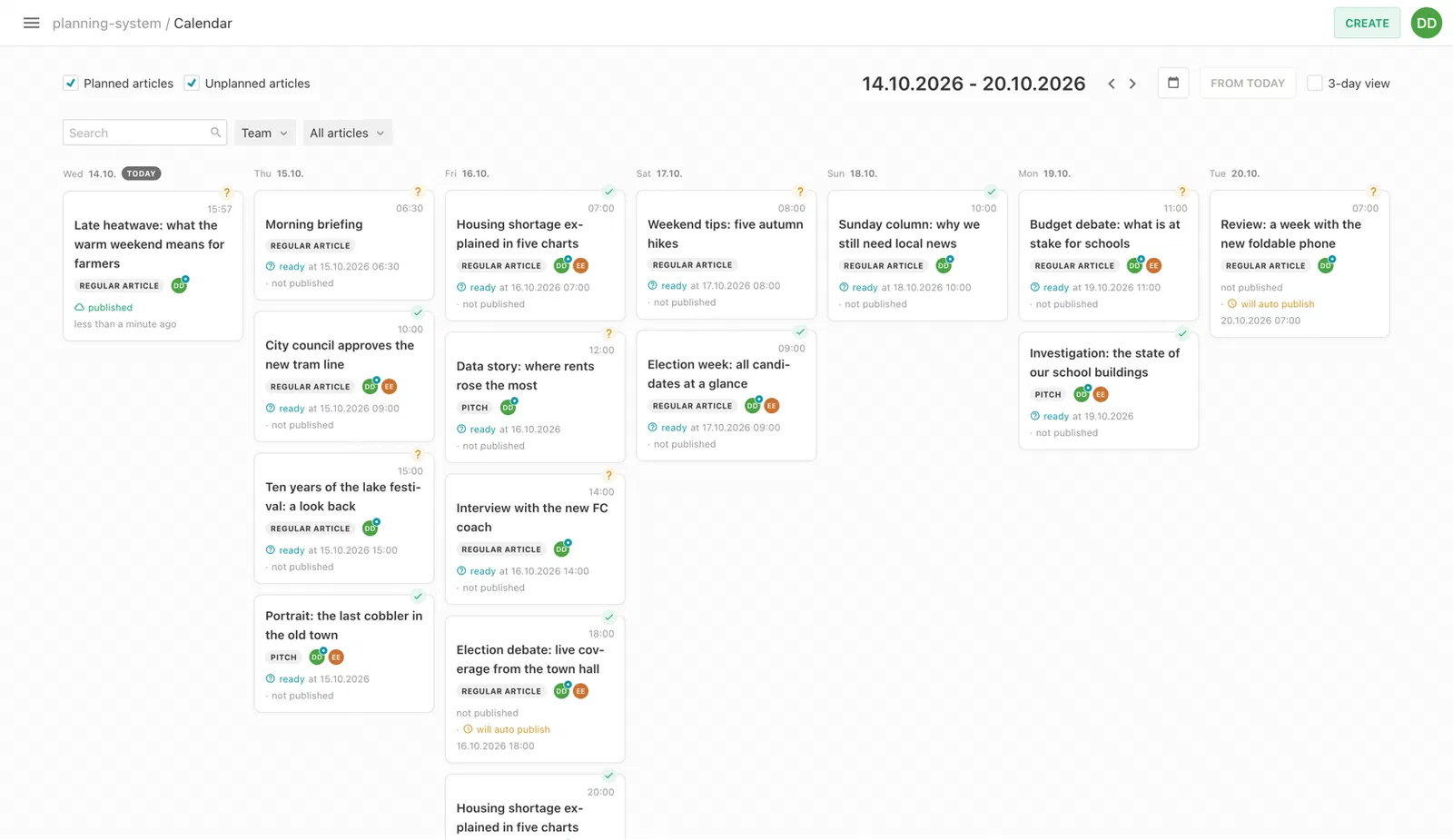
Each day shows its documents as cards. The cards of a day are sorted by time. Cards without a time come last. You cannot change the order within a day.
A card is either planned or unplanned (see Planning Rules). Planned cards have a check mark in the top right corner. Unplanned cards have a question mark.
- Plan: Hover over an unplanned card and click the check mark button. Or drag the card to another day to plan it there.
- Move: Drag a planned card to another day. The time stays the same.
- Unplan: Hover over a planned card and click the question mark button to remove this plan.
Every change is saved right away. Changes by other users show up without reloading the page.
Planning Rules
The Planning Calendar looks at two kinds of dates on each document. The best date says when the document is expected to be ready. Distribution dates say when it is planned. Comparing them decides whether a document shows up as planned or unplanned.
Best Date
The best date is the first of these dates that exists:
- The date the document was last published
- The date the document is scheduled to be published
- The estimated time of completion, if the content type has the
li-estimated-time-of-completionplugin
Distribution Dates
A distribution date says when a document is planned. A document can have several. They are stored in the li-distribution-dates metadata property. Planning, moving and unplanning a card adds, changes and removes a distribution date.
Planned and Unplanned Cards
A document gets a planned card for each distribution date. Two distribution dates on the same day give two planned cards on that day. It gets an unplanned card on its best date, unless it has a distribution date on or after the best date.
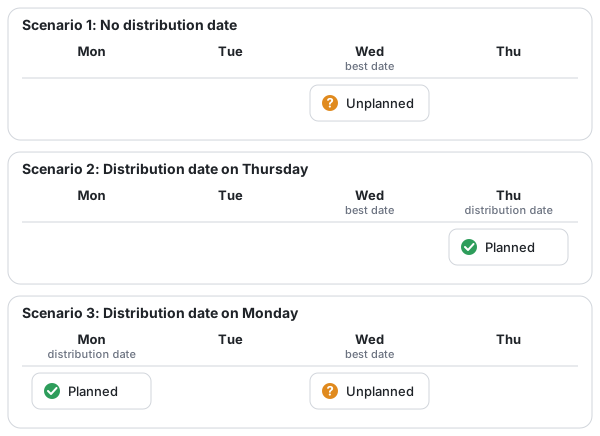
For a document with a best date on Wednesday:
- No distribution date: an unplanned card on Wednesday.
- A distribution date on Thursday: a planned card on Thursday.
- A distribution date on Monday: a planned card on Monday and an unplanned card on Wednesday.
Dates Without a Time
Two kinds of dates can have no time:
- An estimated time of completion with the precision
date. It counts from the start of its day. - Distribution dates, if the metadata property has the precision
date. They count until the end of their day.
So if one of the two dates has no time, a distribution date on the same day as the best date plans the document. For example, a document is published on Friday at 15:00. A distribution date without a time on Friday plans it.
When you plan a card and the distribution dates have no time, the distribution date is set to 12:00.
Configuration
Reindex your documents once when you set up the Planning Calendar:
livingdocs-server elasticsearch-index --handle=li-documents
Livingdocs decides whether a document is unplanned when it indexes the document. Documents that were indexed with an older Livingdocs version may not have this information yet. Until they are reindexed, they get no unplanned card. Their planned cards still show up.
1. Add Distribution Dates to Your Content Types
Add a metadata property of type li-distribution-dates to every content type you want to plan. The calendar only shows documents of content types with this property, even if the baseFilters match other content types.
// content type config
metadata: [
  {
    handle: 'distributionDates',
    type: 'li-distribution-dates'
  }
]
2. Add a Planning Calendar Dashboard
Add a dashboard of type planningCalendar to the dashboards in your project config:
// project config
editorSettings: {
  dashboards: [
    {
      type: 'planningCalendar',
      handle: 'planningCalendar',
      pageTitle: {en: 'Planning Calendar', de: 'Planungskalender'},
      baseFilters: [{key: 'contentType', term: ['article']}],
      displayFilters: ['documentState', {metadataPropertyName: 'team'}]
    }
  ]
}
These properties are available:
handle(required): The name of the calendar in the config. The main navigation uses it to link to the calendar.pageTitle: The title shown at the top of the calendar. Either a string or a translation object like{en: 'Planning Calendar', de: 'Planungskalender'}.baseFilters: Filters that always apply. See Base Filter.displayFilters: Filters editors can choose. See Display Filter.documentCreationFlows: Adds buttons to create new documents. See Document Creation Flows.search.strategy: How the search field works.'legacy'(default) or'simple'. The simple strategy supports search operators like+word,|,"exact phrase",-wordandword*.
Other properties are not allowed. A config with sort or pageSize fails validation. The calendar sorts its cards by date and time on its own, and it always loads up to 200 documents.
3. Add the Planning Calendar to the Main Navigation
Link to the calendar from the main navigation:
// project config
editorSettings: {
  mainNavigation: [
    {
      label: {en: 'Planning Calendar', de: 'Planungskalender'},
      dashboard: 'planningCalendar',
      icon: 'calendar'
    }
  ]
}
Limitations
- The Planning Calendar always shows days and times in the Europe/Zurich timezone, whatever timezone the user is in. This also applies to the Dates Without a Time rules: a day starts and ends at midnight in Zurich.
- The Planning Calendar shows up to 200 documents at a time. If more documents match, it shows a warning. To see all of them, switch to the 3-day view to show fewer days, or narrow down the results with the search and the filters.
- Cross Project Content Sharing is not supported. Documents shared from other projects do not show up on the calendar.


