---
title: Teaser Previews
description: Show teaser previews in the Metadata Screen
---
> [!WARNING]
> We suggest to use [Metadata Previews](/reference/project-config/content-types/llms.txt#metadata-previews) instead. It will let users see the preview immediately when editing a metadata field.
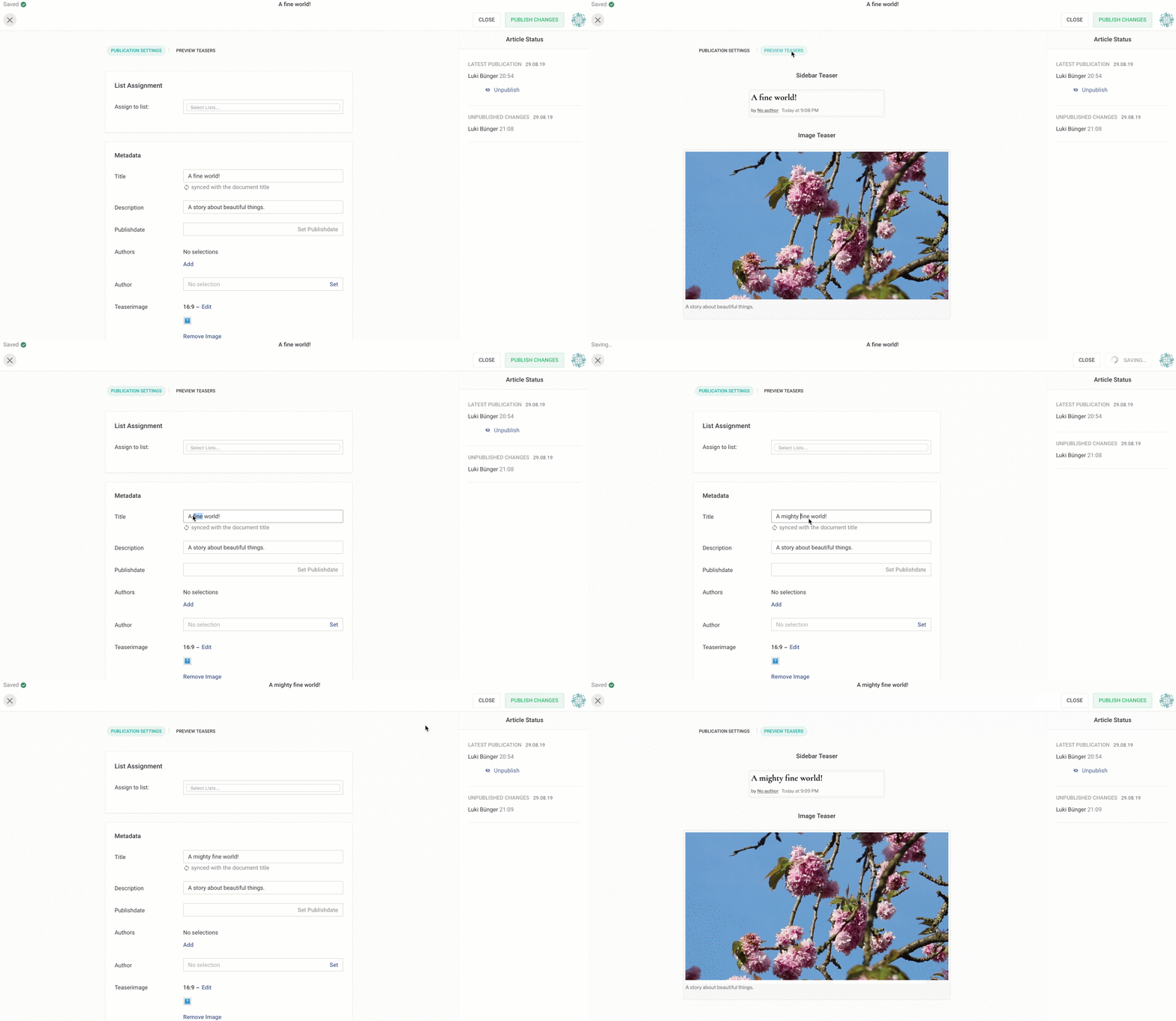
The Teaser Previews add an additional read-only view to the Metadata Form Section of the Livingdocs Editor. It is by default disabled and can only be enabled and configured through a [content type config](/reference/project-config/content-types/llms.txt#teaser-previews).
We basically configure a mapping that translates a subset of the **_current document_** (the one we are editing / publishing) into a state that gets rendered using components from your design. Further we can also control the dimensions and look of the preview.
**Please note**: This documentation assumes that you have a [channel](/reference/project-config/llms.txt) and a [design](/guides/documents/document-design/llms.txt) and at least one [content type](/reference/project-config/content-types/llms.txt) properly set up.
## Minimalist example
```js
teaserPreview: {
enabled: true,
renderSettings: [
{
handle: 'normal',
windowWidth: 320
}
],
teasers: [
{
componentName: 'title',
label: 'Title Teaser',
renderSetting: 'normal',
directives: [
{
name: 'title',
source: ['metadata.title']
}
]
}
]
}
```
This roughly translates into the following:
> Render component `'title'` into a viewport using render settings `'normal'` with the directive `'title'` prefilled with what was found under `'metadata.title'` on the source object.
## Source object schema
A subset of a document structure that you will be able to write lookups against. The `metadata` object gives access to all properties you set up using [metadata plugins](/reference/document/metadata/llms.txt)
```js
{
// The document id
id: 100
// The documents title
title: 100,
// Any metadata on the document
metadata: {
// title,
// description,
// teaserImage,
...
}
}
```
## Full schema
```js
teaserPreview: {
// Whether the preview is enabled.
enabled: true,
// A set of objects that define the size of the
// rendered preview viewport. This section
// controls the actual preview.
renderSettings: [
{
// An identifier of your choosing.
handle: 'sidebar',
// A numeric value (absolute pixels) for the viewport width.
windowWidth: 640,
// Optional. A numeric width (absolute pixels) for the viewport height.
// Only set this if you want to enforce fixed dimensions. If ommitted, the height
// of viewport will auto-adjust.
windowHeight: 320,
// Optional. A DOM string representing a wrapping component for the teaser.
// Use this to give the teaser some context e.g. by emulating a sidebar.
wrapper: ''
}
],
// A set of teaser components you want to have rendered as previews.
// Basically any component from your design can act as a teaser.
teasers: [
{
// The name of the component as defined in the related design.
componentName: 'teaser-sidebar',
// Optional. The label for the teaser preview. Falls back to the label as
// defined in the related design.
label: 'Sidebar Teaser',
// Refers to a handle in `renderSettings`
renderSetting: 'sidebar',
// A list of directives you want to prefill with content
directives: [
{
// The name of the directive.
name: 'embed',
// A list of possible lookups on the passed source object.
// Accepts dot-formatted strings for nested value access.
// The first lookup in the list that gets a match against the
// source object will get used to determine the value of the
// directive mapping.
source: ['metadata.myCustomid', 'id'],
// Optional. If you target directives that operate on object content
// (e.g. `doc-include` directives), you can provide a dot-formatted
// target parameter. The resolved source value will then get set on the
// content object.
// If you omit this, the resolved source value will get set on the directive
// "as is". This is useful when targeting `doc-editable` directives
target: 'params.mediaId'
}
]
}
]
}
```
### Stuff worth noting
- Render settings should usually omit the `windowHeight` parameter as this lets the viewport auto-adjust its height.
- Use the `windowHeight` setting to create a fixed view port. This is useful if you want to render teasers depending on a static display aspect ratio.
- Use the wrapper to emulate the context of your teasers. Remember, you have all your design styles/classes at your disposal.
- Mind your media queries! As the preview will live in an `iframe` with all the design styles loaded, the `windowWidth` will directly affect width-related media queries. You could also use this to your advantage to e.g. preview mobile versions of teasers.
- If a rendered wrapper is wider than `windowWidth`, the contents are scaled, or zoomed out, to fit the required width.
## Examples
### Example 1
In a design, with a teaser component `teaser`:
```html
```
Extend a [content-type config](/reference/project-config/content-types/llms.txt):
```js
contentTypes: [
{
handle: 'regular',
documentType: 'article',
teaserPreview: {
enabled: true,
renderSettings: [
{
handle: 'sidebar',
width: 320
}
],
teasers: [
{
name: 'teaser',
size: 'sidebar',
directives: [
{
name: 'title',
source: ['metadata.title', 'title']
},
{
name: 'image',
source: ['metadata.teaserImage']
},
{
name: 'lead',
source: ['metadata.description', 'metadata.title']
}
]
}
]
}
}
]
```
### Example 2
In a design, with a teaser component `embed-teaser`:
```html
```
Extend a [content-type config](/reference/project-config/content-types/llms.txt):
```js
contentTypes: [
{
handle: 'regular',
documentType: 'article',
teaserPreview: {
enabled: true,
renderSettings: [
{
handle: 'wide',
wrapper: `
`,
windowWidth: 640
}
],
teasers: [
{
componentName: 'embed-teaser',
label: 'Sidebar Teaser',
renderSetting: 'sidebar',
directives: [
{
name: 'embed',
source: ['id'],
target: 'params.mediaId'
}
]
}
]
}
}
]
```