Added in: release-2026-07
Images come with rules about how they may be used. The terms are often cryptic or scattered across agency contracts, freelancer agreements and handout conditions, and breaking them exposes a newsroom to legal and financial risk.
License Profiles capture a contract’s terms in structured form. A profile is attached to a media library entry and enforced by the system. It models two things: which usage purposes an image is allowed in, and whether each of those uses has to be billed. A profile whose terms go beyond what the rules can express is flagged as requiring approval; every image assigned such a profile then needs a human approval before it can be published.
Two building blocks work together:
- Usage purpose: a named publication context (Web, Print, Newsletter, …). A document resolves to exactly one purpose via its content type.
- License profile: a color-coded set of rules, one rule per usage purpose. Assigned to a media library entry through the
li-license-profilemetadata plugin.
The feature is opt-in. License profiles are only enforced when licenseProfiles.enabled is set to true and profiles are configured. Media types with the li-license-profile metadata plugin are then checked for whether they may be published in a document. Media types without the plugin are not restricted.
How License Profiles Work
Assigning a Profile
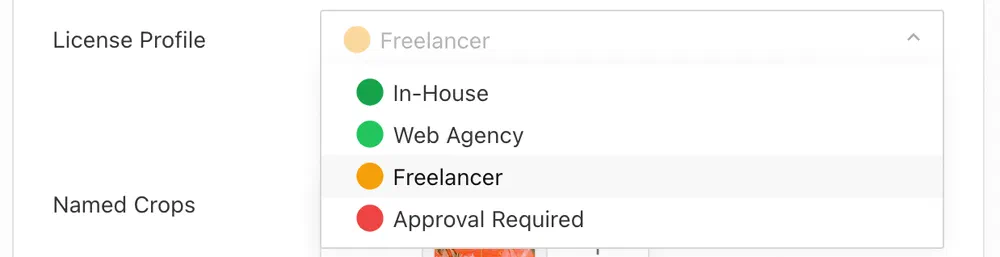
Editors assign a profile in the metadata form of a media library entry. A dropdown lists every configured profile, each with its color. Picking one shows that profile’s rules underneath: the usage purposes the image may be published in and whether each use is billed. Profiles can also be assigned through batch metadata editing or set automatically when an image is imported.

While Editing
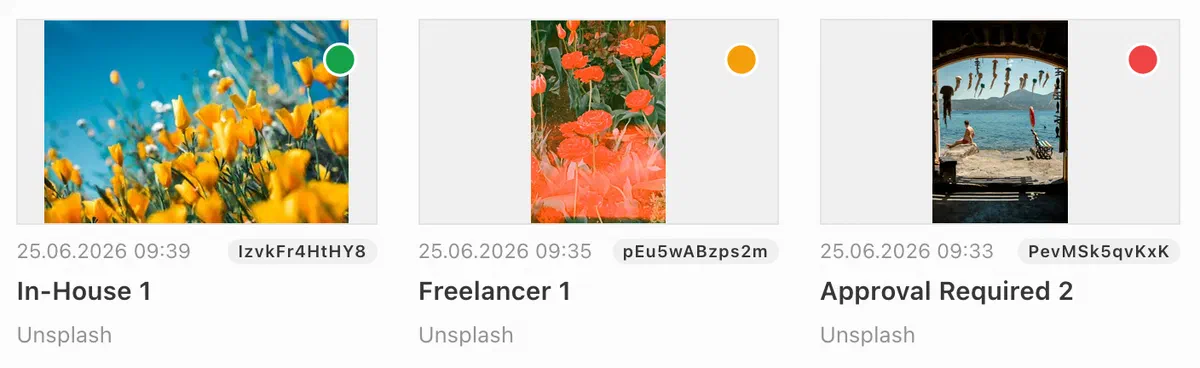
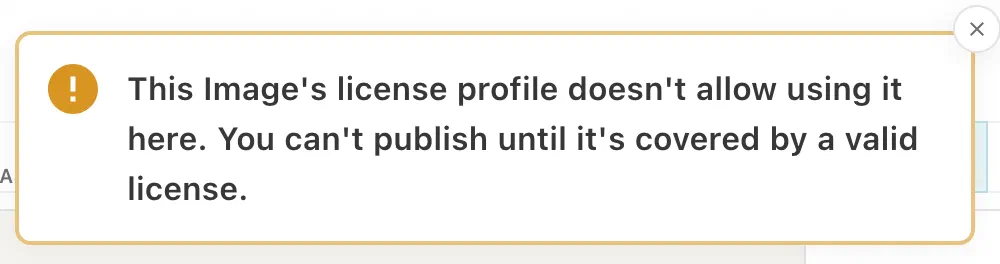
Image cards, the image properties panel and placed images show the profile as a colored indicator; images without a profile get a warning tag. Placing an image is never blocked: the editor warns early when an image has no profile, an unknown profile, a profile that does not cover the document’s purpose, or needs approval.
The Publish Gate
The hard block comes at publication, once enforcement is switched on with licenseProfiles.enabled: true (see Enabling Enforcement). The server then checks every referenced image (in the content and in metadata) and blocks publishing when:
- the image has no license profile assigned,
- the assigned profile no longer exists in the config,
- no rule in the profile covers the document’s purpose, or
- the profile requires approval and the image has not been approved yet.
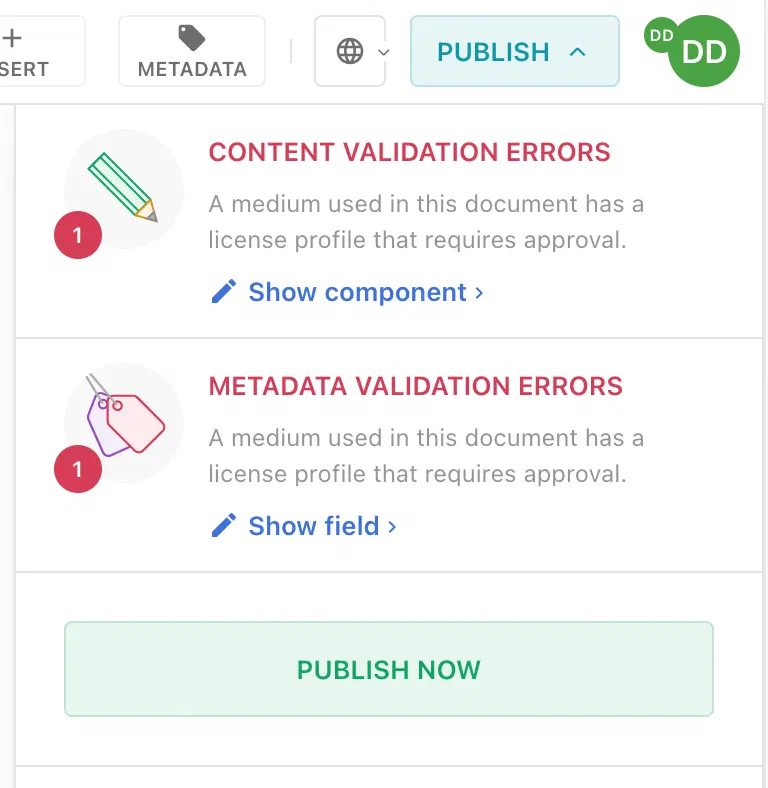
The publish control lists each violation and links to the offending image.
Approval Flow
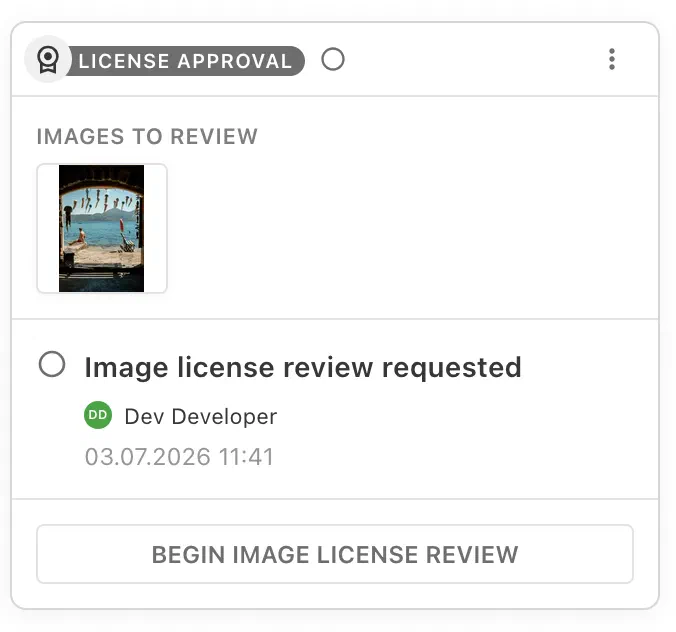
When a document contains images whose profile requires approval, the approval task is requested automatically. The publish control and the task panel show the images to review; the image desk completes the task to approve them. Approved images are recorded on the task, so re-publishing an unchanged document does not ask again. A confirmed usage log entry for the same document also counts as approval.
Completing the task approves all images pending approval in that document at once.
Usage Log and Billing
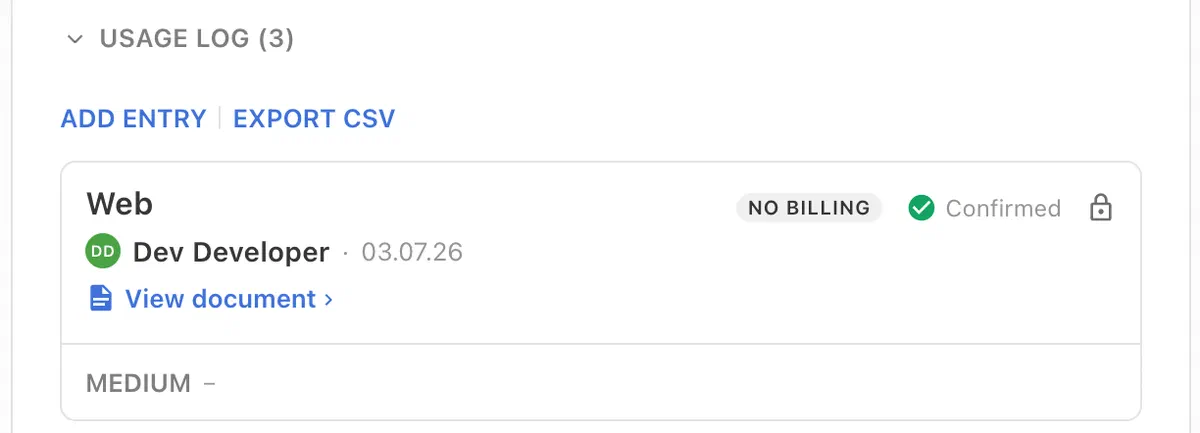
On publish, one usage log entry is recorded per referenced image, de-duplicated per document and purpose, so re-publishing never produces duplicates. Each entry stores a snapshot of the applied rule and a billing flag derived from the rule’s billingMode:
neverresults inbilling: false, the use is not billedalwaysresults inbilling: true, the use is billed- unset leaves the flag undefined, and a user can set it manually in the usage log as long as it is unset
For resolving the flag by hand, and for filtering and exporting dashboards by billing status, see Billing in the Usage Log guide.
Configuration
Prerequisites
- License profiles build on the Usage Log, which requires the 2025 Behavior (
mediaLibrary.use2025Behavior: truein the server config). - At least one media type that should carry license profiles.
Usage Purposes
Define the usage purposes in the project config. See the Media Center reference for all properties.
// project config
mediaCenter: {
  usagePurposes: [
    {
      // This purpose records usage automatically on publish: when a document of a
      // matching content type is published, each image it uses gets an entry.
      handle: 'web',
      label: {en: 'Web', de: 'Web'},
      // Prevents users from adding entries for this purpose by hand, since they
      // are created automatically.
      internal: true,
      // Content type(s) that resolve to this purpose. A content type may belong
      // to at most one purpose.
      contentType: ['regular'],
      // Optional handle of a registered recordUsageLogEntry function (see below).
      // Without it, the on-publish entry is recorded as pending.
      recordUsageLogEntry: 'recordWebUsage'
    },
    {
      // This purpose has no contentType, so nothing is recorded on publish.
      // Users record these entries manually in the editor, for usage that
      // happens outside Livingdocs.
      handle: 'print',
      label: {en: 'Print', de: 'Druck'},
      // Additional fields recorded with each usage log entry
      paramsSchema: [
        {
          handle: 'page',
          type: 'li-integer',
          ui: {label: {en: 'Page', de: 'Seite'}}
        }
      ]
    }
  ]
}
Purpose handles must be unique, and a content type may be matched by at most one purpose, so a document always resolves to a single purpose. The internal, contentType and recordUsageLogEntry properties decide how a purpose’s entries are created. See the Media Center reference for how each one behaves.
License Profiles
Define the profiles in the project config:
// project config
mediaCenter: {
  licenseProfiles: {
    // Switches enforcement on. Defaults to false. While false, profiles can be
    // assigned to media but never block publishing. See "Enabling Enforcement" below.
    enabled: false,
    // Required as soon as one profile has approvalRequired: true.
    // Must match the handle of a li-task-v2 metadata property (see below).
    approvalTaskHandle: 'licenseApproval',
    profiles: [
      {
        handle: 'inHouse',
        label: {en: 'In-House', de: 'Hausintern'},
        color: '#2fb181', // used for the indicator in the UI
        approvalRequired: false,
        rules: {
          web: {costClass: 'free', billingMode: 'never'},
          print: {costClass: 'free', billingMode: 'never'}
        }
      },
      {
        handle: 'freelancer',
        label: {en: 'Freelancer', de: 'Freischaffende'},
        color: '#e0b32d',
        approvalRequired: false,
        rules: {
          web: {costClass: 'low', billingMode: 'always'},
          print: {costClass: 'low', billingMode: 'always'}
        }
      },
      {
        handle: 'restricted',
        label: {en: 'Restricted', de: 'Eingeschränkt'},
        color: '#d94f4f',
        approvalRequired: true,
        rules: {
          web: {costClass: 'high'}
        }
      }
    ]
  }
}
rules (required): an object keyed by usage purpose handle. An image with this profile may only be published in purposes that have a rule. Each rule supports two optional properties:
costClass: one offree,low,standard,high. An indicator for editors, not enforced.billingMode:never(not billed per use: free, prepaid or flat rate) oralways(billed on every use, e.g. pay-per-use). When unset, the billing decision is left open and a human decides later.
approvalRequired (required): when true, every use of an image with this profile needs a human approval before the document can be published.
color (required): hex color of the profile indicator shown on image cards, in the metadata form and in the properties panel.
Profile handles must be unique, and every rule key must be a configured usage purpose handle.
Media Type Metadata
Add the li-license-profile metadata property to each media type that should carry profiles:
// media type config
metadata: [
  {
    handle: 'licenseProfile',
    type: 'li-license-profile',
    config: {index: true},
    ui: {label: {en: 'License Profile', de: 'Lizenzprofil'}}
  }
]
config: {index: true} is required for the display filters below.
Display Filters
Add the two license filters to your media library dashboards:
// editor settings, dashboard configuration
displayFilters: [{metadataPropertyName: 'licenseProfile'}, {filterName: 'liLicensePurpose'}]
{metadataPropertyName: 'licenseProfile'}renders the profile filter for theli-license-profilemetadata property (here its handle islicenseProfile). It filters by a specific profile.liLicensePurposefilters by allowed usage purposes, cost classes and approval requirement, and resolves to the profiles that satisfy the selection.
Approval Task
When a profile has approvalRequired: true, add a li-task-v2 metadata property to every content type that can contain such images. Its handle must match licenseProfiles.approvalTaskHandle:
// content type config
metadata: [
  {
    handle: 'licenseApproval',
    type: 'li-task-v2',
    config: {
      requested: {
        beforeLabel: {en: 'Request image license review', de: 'Bildlizenz-Freigabe anfordern'},
        afterLabel: {en: 'Image license review requested', de: 'Bildlizenz-Freigabe angefordert'}
      },
      completed: {
        beforeLabel: {en: 'Resolve image license', de: 'Bildlizenz freigeben'},
        afterLabel: {en: 'Image license resolved', de: 'Bildlizenz freigegeben'}
      }
    }
  }
]
Recording Usage Log Entries
For an internal purpose, register the recordUsageLogEntry function it references. The function runs on publish and sets the state and params of the recorded entry:
liServer.registerRecordUsageLogEntryFunctions([
  {
    handle: 'recordWebUsage',
    async recordUsageLogEntry({documentVersion, usagePurpose, projectConfig}) {
      return {state: 'confirmed', params: {}}
    }
  }
])
That is the whole setup. No hook registration call is needed: once profiles are configured and licenseProfiles.enabled is true, the publish gate and approval workflow activate automatically. Usage logging follows the usage purposes and runs independently of enabled.
Enabling Enforcement
licenseProfiles.enabled controls whether profiles are enforced. It defaults to false, so enforcement has to be switched on deliberately:
false(the default): profiles can be configured and assigned to media, but they never affect publishing. Media without a profile (or with an unknown or uncovered profile) does not block publication, and no approval tasks are requested. The license profiles can manually be set in the image metadata.true: the publish gate and approval workflow described above are in effect. License indicators and warnings are shown in the editor.
In release-2026-07 the property defaulted to true.
Constraints
- License profiles require
mediaLibrary.use2025Behavior: true. - Only media types with a
li-license-profilemetadata property participate in license checks. - A content type may belong to at most one usage purpose. With enforcement enabled, a document whose content type resolves to no purpose cannot publish profile-managed images, so every content type that can contain such images needs a purpose.
- Approval is granted per document, not per image: completing the approval task approves all pending images in the document.
costClassis informational only and not enforced.


